0. Preparation
Browser Support
- Google Chrome (Highly Recommended)
- Microsoft Edge
- Opera
- Firefox & Safari (No WebHID support yet)
Hardware Check
- Battery > 20% Charged
- Use a Data Cable (Not Charge-Only)
- Close Steam / DS4Windows
Master your controller hardware with WebHID technology
Most modern controllers (DualSense, DualShock 4, Xbox) use ALPS analog stick modules. These modules rely on two potentiometers—one for the X-axis (horizontal) and one for the Y-axis (vertical). A potentiometer is essentially a variable resistor that uses a physical wiper blade sliding across a carbon track to read position.
Every time you move the stick, friction occurs. Over hundreds of hours of gameplay, this friction causes wear of the carbon track and conductive dust accumulation.
When this happens, the controller reports movement (e.g., Value +15) even when centered (Value 0). This is Stick Drift.
Since we cannot physically repair the carbon track via software, our tool uses Firmware Level Calibration. We calculate the exact error offset of your drifted stick and write a new "Center Point" to the controller's permanent memory (NVS). This forces the controller to mathematically ignore the drift at a hardware level.
AB Control Hub is built on the WebHID API (Web Human Interface Device). This eliminates the need for sketchy .exe downloads or drivers.
The browser communicates directly with the USB/Bluetooth HID Report Descriptors for millisecond precision.
Unlike native apps, a website cannot read your files or access other hardware without explicit permission.
Runs identically on Windows, macOS, Linux, and Android.
Use our advanced diagnostic tools to spot "High Copy" controllers.
Switch the visualizer to "Circularity Mode" and rotate your stick in a perfect circle.
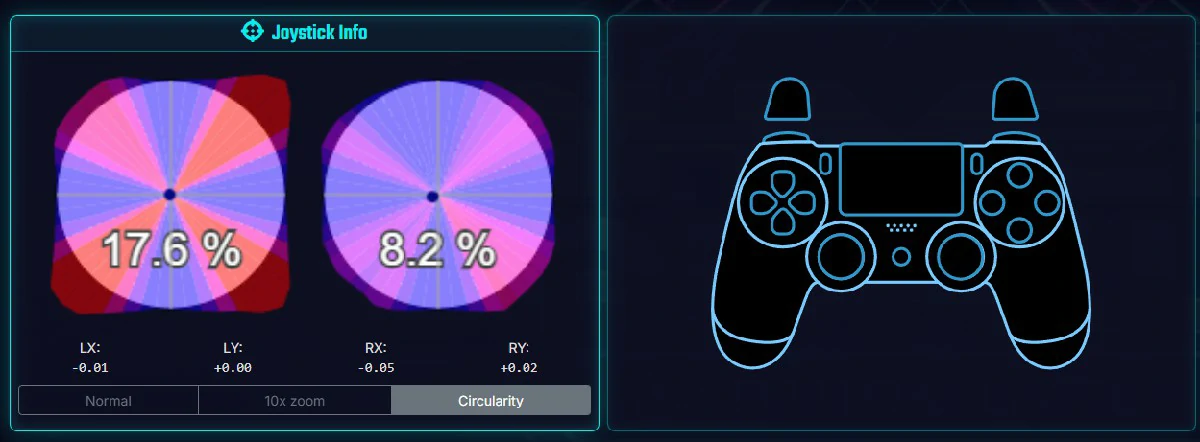
Example of Circularity Test
Do NOT disconnect the cable while saving. This writes to the controller's internal memory.
Fixes drift (stick moving on its own)
Go to Calibration tab.
Click "Center Calibration".
Rotate both sticks 3 times fully.
The tool calculates and saves the offset.
Fixes deadzones (not reaching 100% speed)
Click "Range Calibration".
Push sticks to absolute edges.
Rotate firmly along the rim.
Tool expands internal mapping to 100%.
If software calibration fails, the physical damage to the potentiometer is likely too severe.
Windows has locked the device. This usually happens if you unplugged the controller while it was being used by another program. Unplug/Replug the controller and refresh the page.